
Download Bitvise SSH Client – Secure, Fast, and Feature‑Rich SSH Tool
Overview & Key Benefits
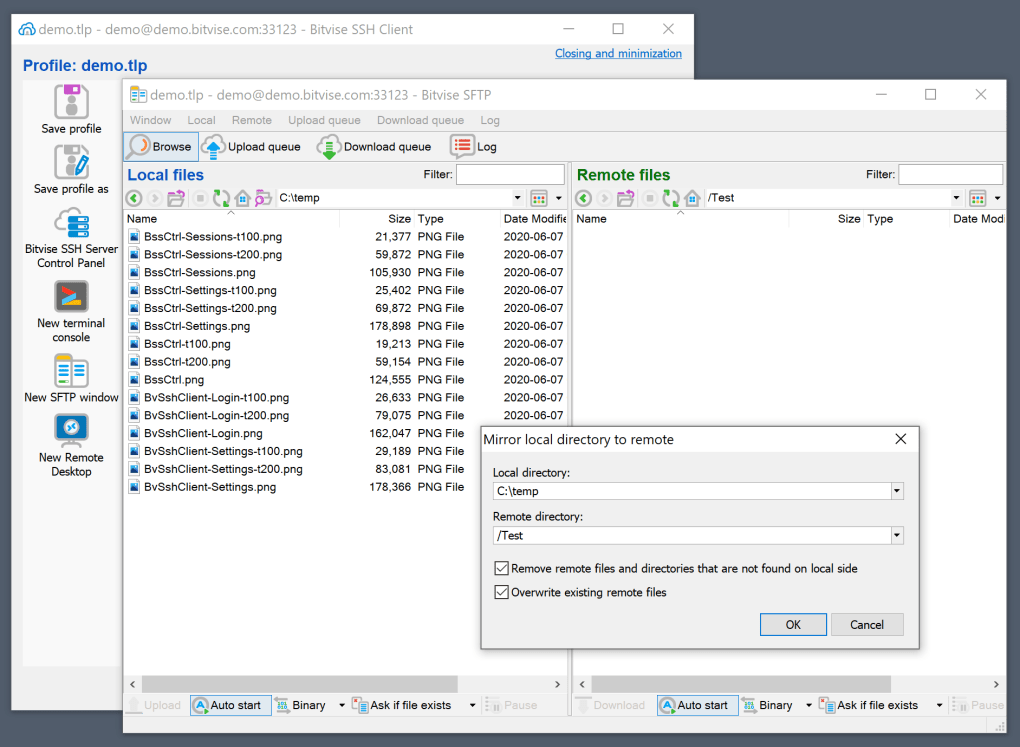
Bitvise SSH Client, formerly known as Tunnelier, is a powerful Windows‑based SSH solution that combines a robust graphical SFTP interface with advanced tunneling capabilities. Designed by the same team behind Bitvise SSH Server, the client excels at creating encrypted connections to a wide range of SSH servers, from standard OpenSSH installations to Bitvise’s own server product. While its feature set surpasses classic tools like PuTTY, Bitvise balances complexity with a user‑friendly graphical environment, making it suitable for both seasoned administrators and power users who demand fine‑grained control over authentication, port forwarding, and file transfer. The software is free for personal use, supports public‑key, password, and GSSAPI authentication, and offers a built‑in terminal emulator with configurable fonts, colors, and keyboard shortcuts. Its integrated SFTP browser provides drag‑and‑drop file management, remote editing, and directory synchronization, turning a simple SSH session into a complete remote workstation. Bitvise SSH Client also includes a sophisticated session manager that remembers connection profiles, enabling one‑click reconnections to frequently used hosts. Security‑conscious users appreciate the client’s support for the latest SSH‑2 protocol standards, strong encryption algorithms, and automatic host‑key verification. In short, Bitvise SSH Client delivers a secure, customizable tunnel of your own making while remaining free, regularly updated, and backed by a reputable development team.
Feature Set and Installation Guide
Core Features
- Graphical SFTP browser with drag‑and‑drop support.
- Full‑screen terminal emulator supporting Unicode, Xterm, and VT100.
- Advanced port forwarding (local, remote, dynamic) with GUI configuration.
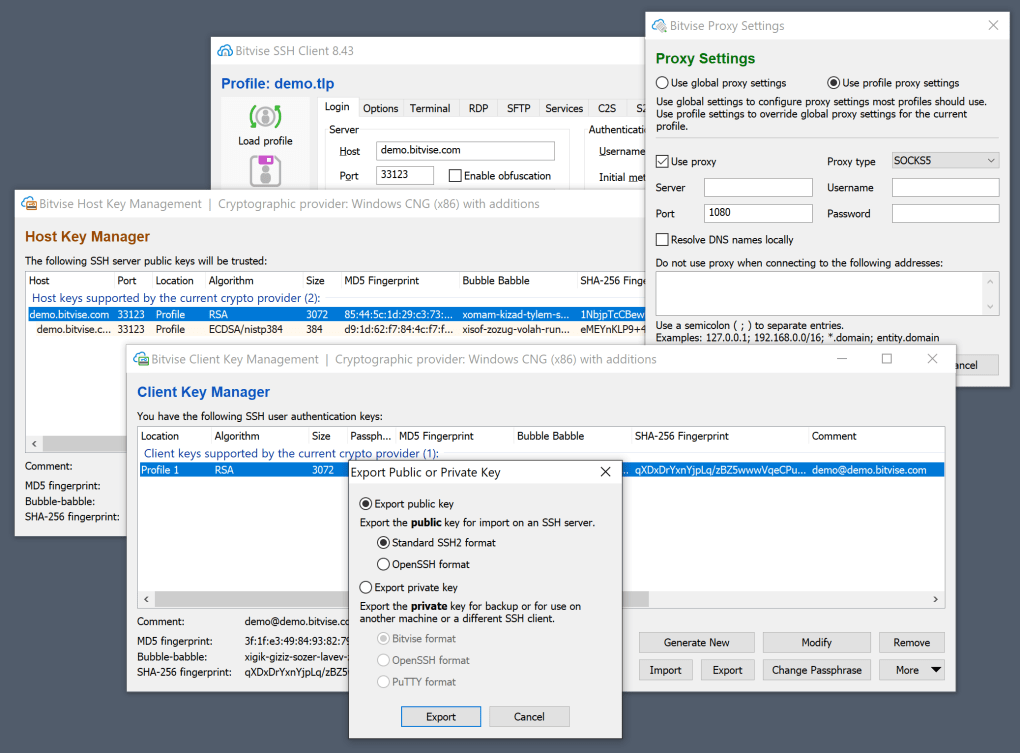
- Public‑key, password, and GSSAPI authentication, plus smartcard integration.
- Session manager for storing multiple profiles and auto‑reconnect.
- Remote desktop forwarding (RDP, VNC) over SSH tunnels.
- Integrated command‑line tools (sftp, scp) for script automation.
- Automatic host‑key verification and warning system.
- Support for SSH‑2 only, ensuring modern cryptographic standards.
- Regular free updates with security patches and feature enhancements.
Step‑by‑Step Installation
Downloading and installing Bitvise SSH Client is straightforward. Follow these steps to get the client up and running on a Windows machine:
- Download the installer: Visit the official Bitvise website and click the “Download Free SSH Client” button. The file is typically named
Bitvise-SSH-Client-Installer.exeand is under 20 MB. - Run the installer: Double‑click the downloaded file. Windows User Account Control (UAC) will prompt for permission; click “Yes” to allow the installer to make changes.
- Choose installation options: The wizard offers a “Typical” installation that includes all components, or a “Custom” option if you only need the terminal or the SFTP client. For most users, “Typical” is recommended.
- Set default file associations: During the custom setup you can associate .ssh files and .sftp links with Bitvise, enabling one‑click opening from Explorer.
- Complete the installation: Click “Install” and wait a few seconds. Once finished, you can launch the client from the Start menu or the desktop shortcut.
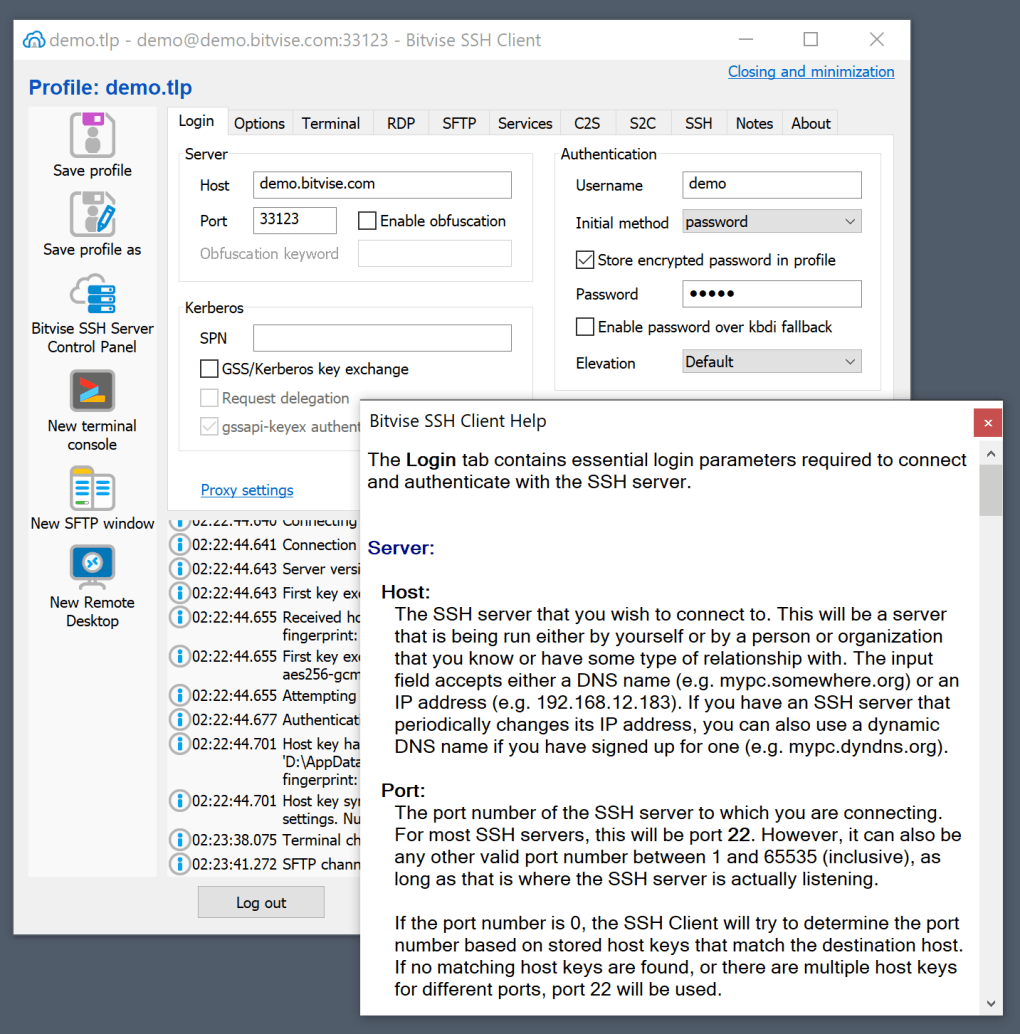
- Initial configuration: The first run presents a “Quick Connect” dialog. Enter the remote host address, port (default 22), username, and select the authentication method. Save the session if you plan to reuse it.
After installation, the client automatically checks for updates each time it starts, ensuring you always have the latest security patches. For enterprise environments, silent deployment scripts are available, allowing administrators to push the MSI package across multiple workstations.
Compatibility, Pros & Cons, Frequently Asked Questions
Operating System Compatibility
Bitvise SSH Client is a native Windows application, supporting Windows 10, Windows 11, and Windows Server editions from 2012 onward. The installer includes both 32‑bit and 64‑bit binaries, guaranteeing smooth performance on legacy hardware as well as modern systems. While there is no official macOS or Linux version, the client can be run on those platforms via Wine, though native performance and some GUI features may be limited. Mobile users can achieve similar functionality through Bitvise’s companion apps for Android and iOS, which provide secure SSH tunneling and SFTP access, but the full desktop feature set remains exclusive to Windows.
Pros & Cons
- Pros
- Rich graphical SFTP interface simplifies file transfers.
- Comprehensive port‑forwarding options for developers and sysadmins.
- Robust authentication support, including smartcards and GSSAPI.
- Free for personal use with regular security updates.
- Session manager saves time on repeated connections.
- Cons
- Only native to Windows; macOS/Linux users need workarounds.
- Feature density can overwhelm newcomers compared to lightweight tools like PuTTY.
- Advanced settings are hidden in multiple dialog boxes, requiring a learning curve.
FAQ – Your Bitvise SSH Client Questions Answered
Is Bitvise SSH Client truly free for commercial use?
The client is free for personal, educational, and non‑commercial use. For commercial environments, Bitvise offers a paid license that provides priority support and additional enterprise features.
Can I use Bitvise SSH Client to tunnel RDP traffic?
Yes. The client includes Remote Desktop Forwarding, allowing you to securely tunnel RDP or VNC sessions over an SSH connection with just a few clicks.
How does Bitvise handle host‑key verification?
During the first connection, Bitvise displays the server’s public key fingerprint. You can trust it permanently, trust it for the session only, or reject it. The client stores accepted keys in a local database for future verification.
Is there a command‑line version of Bitvise for scripting?
Yes. Bitvise ships with command‑line utilities (bssh.exe, bsftp.exe, and bsscp.exe) that can be used in batch files or PowerShell scripts to automate transfers and remote command execution.
What encryption algorithms does Bitvise support?
The client supports all modern SSH‑2 ciphers, including AES‑256‑CBC, AES‑256‑GCM, ChaCha20‑Poly1305, and the newer post‑quantum experimental algorithms when both client and server negotiate them.
Final Verdict and Call to Action
Bitvise SSH Client stands out as a feature‑rich, secure, and free SSH solution for Windows users who need more than a simple terminal emulator. Its graphical SFTP browser, extensive tunneling options, and strong authentication mechanisms make it a solid alternative to lightweight clients while still being approachable for power users. Although the learning curve can be steep for beginners and native support is limited to Windows, the benefits of a unified interface for file transfers, remote desktop forwarding, and session management outweigh the drawbacks for most professionals. If you are looking for a secure, regularly updated SSH tool that gives you granular control over every aspect of your connection, Bitvise SSH Client is worth the download.
Ready to secure your remote work? Download Bitvise SSH Client now and start building encrypted tunnels tailored to your workflow.
Bitvise SSH Client delivers a professional‑grade experience with a user‑friendly GUI, making complex SSH tasks simple. The only limitation is its Windows‑only nature, but for the target audience it’s an excellent choice.







